Understand & write
Language models to converse, analyse and summarise.
 Request a presentation
Optima-Tools · Your working interface
OT is the interface that brings together your tools and your AI engines. Language, image creation, video, documents: choose engines compatible with your installation and find all your use cases in a single environment.
The interface stays. The engines adapt.
OT is not a single language model. Several language models (LLMs) and specialised engines can be configured according to your use cases, the available connectors and the capabilities of your hardware.
Your business workspaces, documents, projects, rules and preferences.
Language models to converse, analyse and summarise.
Image generation engines to produce and compare variants.
Specialised engines for the available video creation use cases.
Engines can run locally or through the remote services enabled by your organisation. The available features depend on the configuration; not all models are interchangeable.
Three Brains · One common framework
Three complementary levels structure the instructions: governance, business, personal preferences. These are configuration levels within OT, not three imposed language models.
Explore the business workspacesSets the common framework: data policies, restrictions and cross-cutting safeguards that govern usage.
Business and personal instructions must stay within this framework. These controls support the use of AI without replacing human verification of the results.
Defines the mission of the workspace, the business logic and the sources that give context to the answers.
It steers the work according to business needs and approved sources, within the limits of the Guardian Brain.
Refines the style, the format and the output preferences, within the framework of the two levels above.
A concise answer, a structured presentation or an adapted tone: the form changes without altering the business and global rules.
A contextualised result, to be checked and used.
01 · The OT workspaces
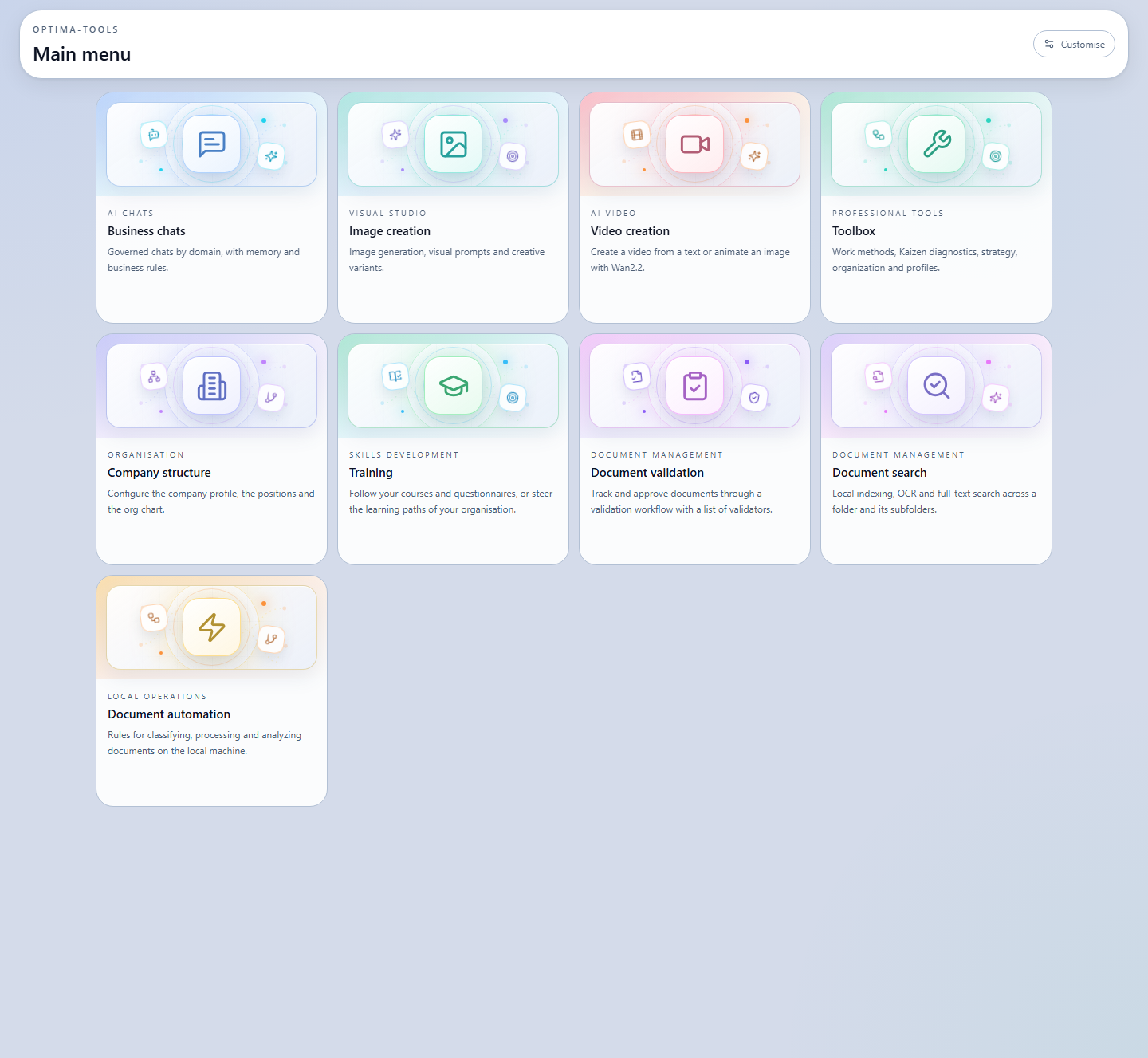
The main menu gives direct access to nine distinct functions. Users choose their objective, work within a suitable framework and find their result in the same place.
AI chats
Visual studio
AI video
Analysis & decision
Organisation
Skills
Document management
Document management
In development
02 · Toolbox
From personal questionnaires to strategic paths, OT turns a method into readable steps, with tracking and a summary.
Explore your behavioural tendencies, your communication styles and concrete ways to adapt.
Personal analysis · neutral questionnaireObserve five broad personality dimensions with a nuanced reading and contextualised results.
Personal analysis · detailed resultAccess the available personality tests and find your results in your personal tracking.
DISC, HEXACO, MBTI, Enneagram…SWOT, PESTEL, positioning and guided paths to clarify a situation before deciding.
Tracked project · actionable summaryFrame the responsibilities, the change and the conditions for implementing an initiative.
Guided paths · shared workPrepare conversations, analyse the dynamics and turn the results into communication actions.
Team tracking · interaction keys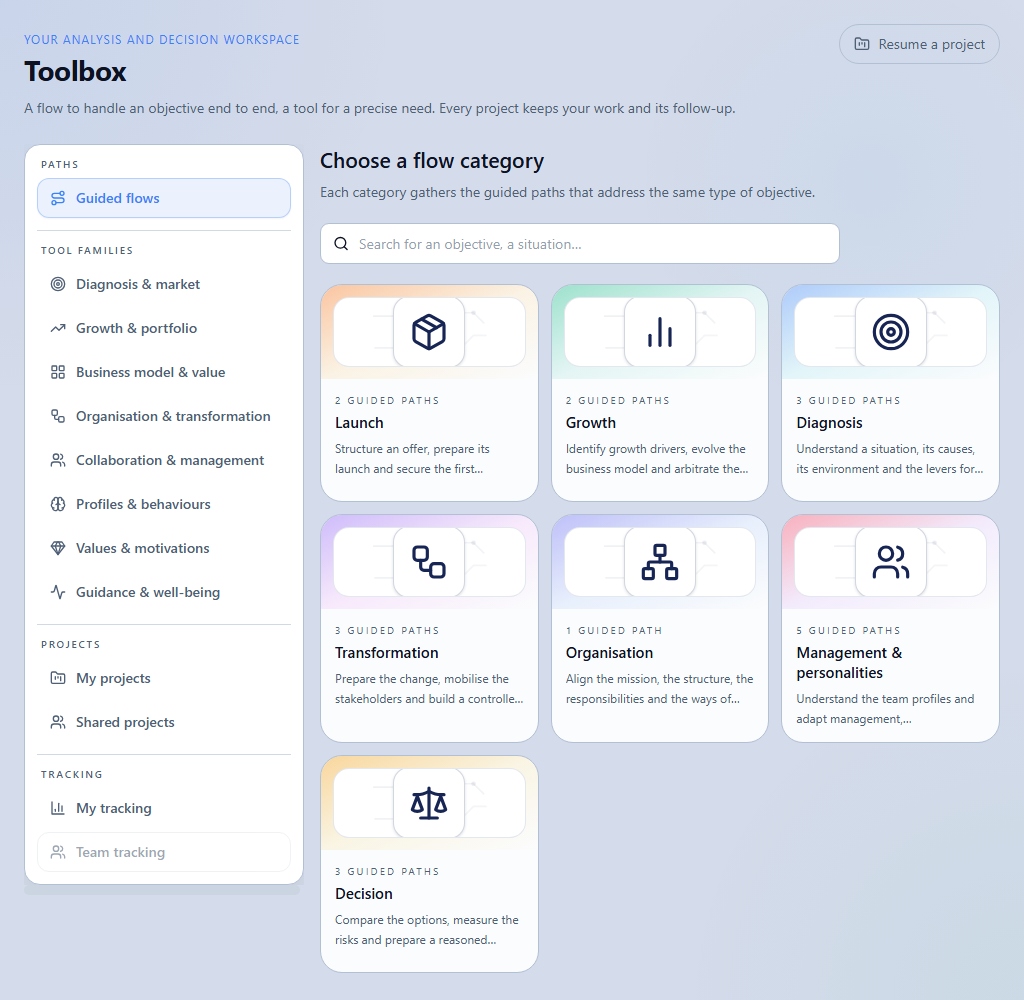
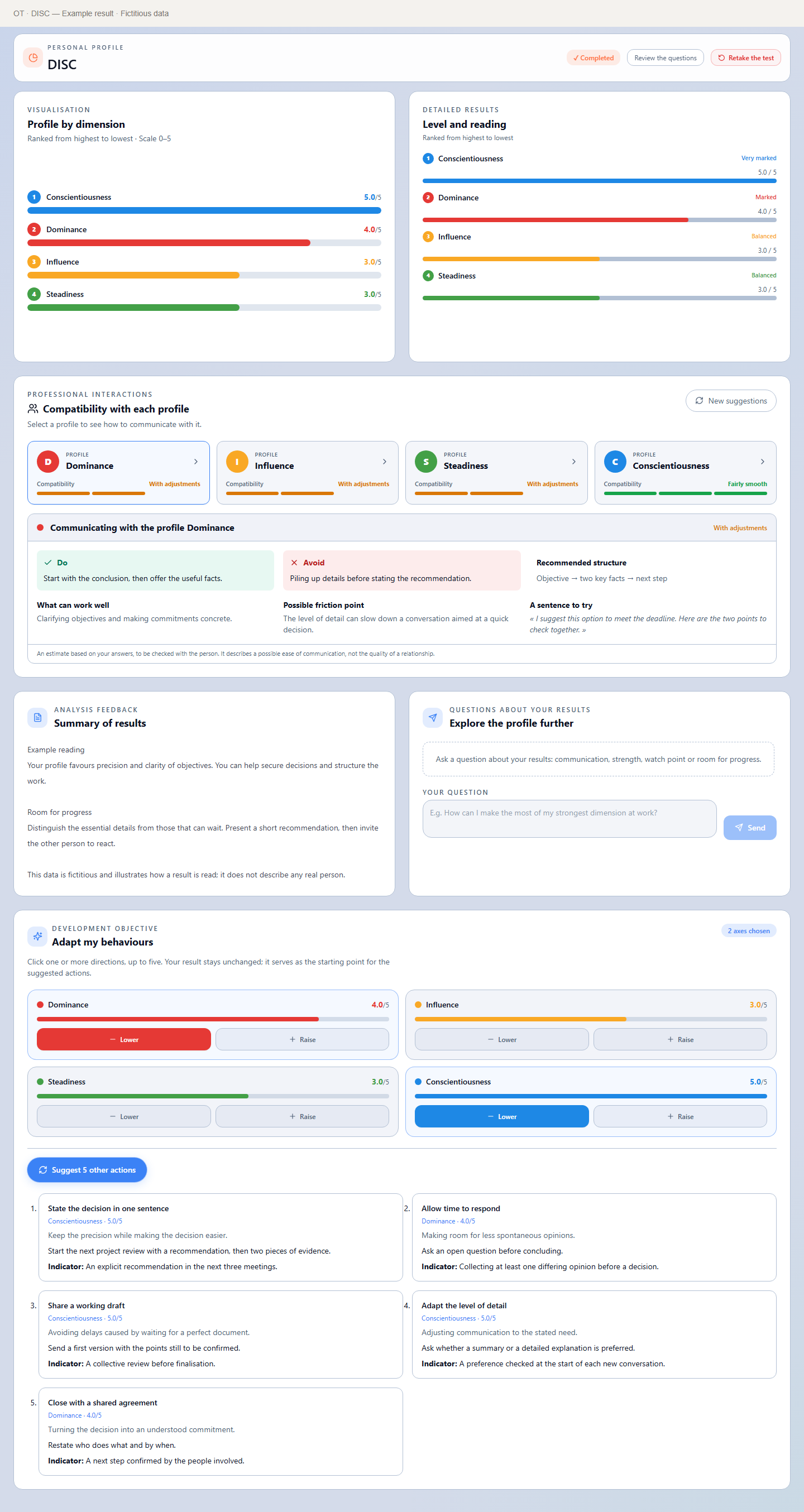
Toolbox · Personal DISC
Discover an example of a DISC result: reading of the dimensions, communication compatibility with other profiles and concrete suggestions for adapting behaviour. These insights help people strengthen their commitment, distribute roles more effectively and find a more compatible way to collaborate within a team or project group.
03 · OT White experience
Consistent navigation lets you move from a request to a tracked project, then to a document or an action.
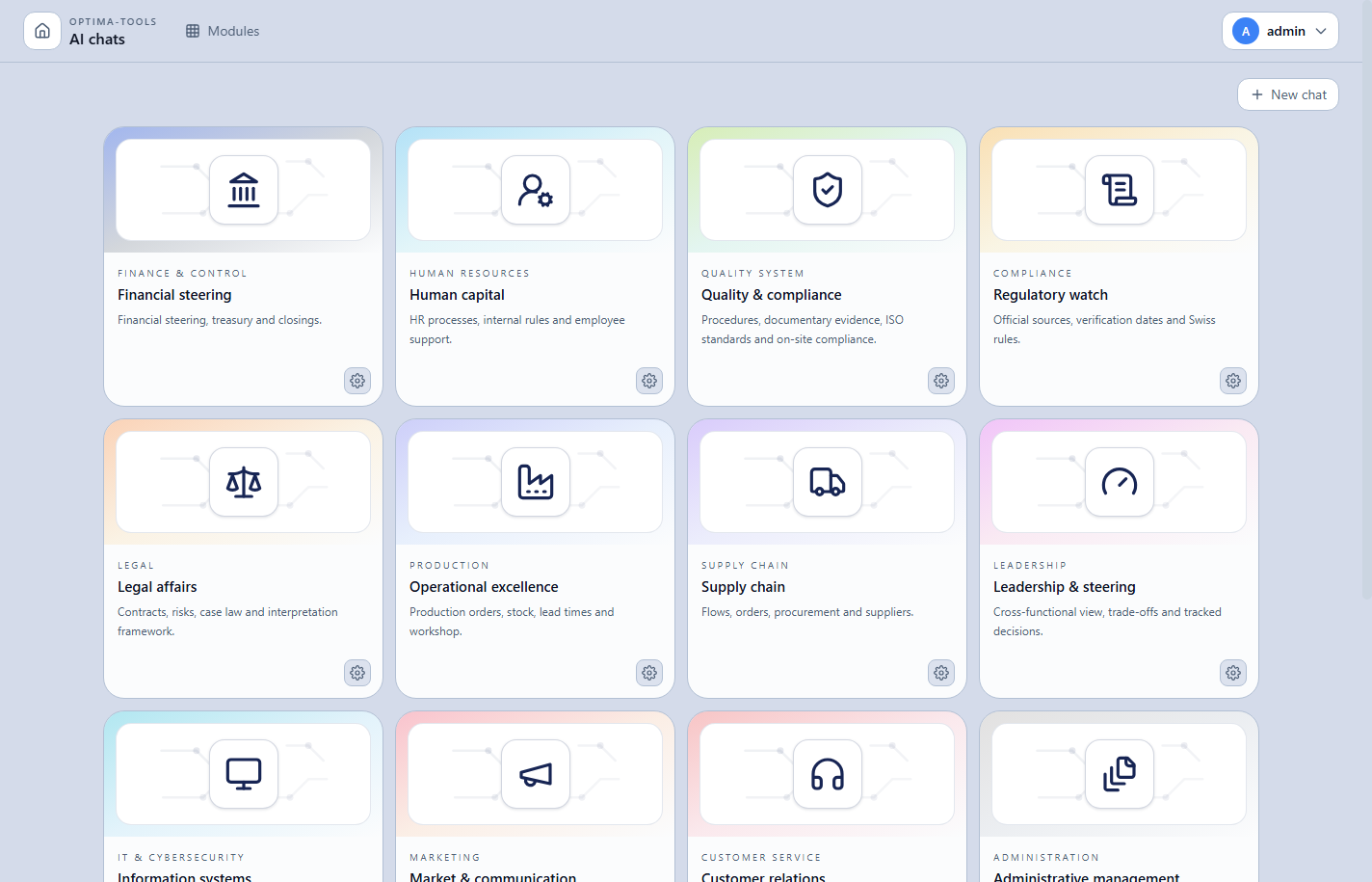
A module, an assistant or a method depending on the objective.
Answer, add sources and move forward with guided steps.
Review the results, the sources and the items that require a decision.
Find the project again, export it or continue the analysis in another module.
04 · Local operation
Optima-Tools is installed on the workstation or the internal infrastructure of the organisation. The licence is imported and checked locally; no daily connection to a licensing service is required.
AI engines can be local. If your organisation enables a remote provider or a web search, the corresponding exchanges then follow the configuration you have chosen.
Assess your configuration ↗The hardware diagnosis identifies the compatible features before a plan is chosen.
One interface · Multiple tools
Optima-Tools is your workspace interface, not an artificial intelligence model. You enter your request and find your results there. Depending on the selected function and your configuration, the application sends the task to a specialised engine for language, images, video or audio transcription.
Engines are separate tools that you install or connect. Their availability, quality and speed depend on the chosen model, your hardware and enabled services. Optima-Tools brings their use together in one interface.
Hardware adaptation
Optima-Tools detects the resources that are actually available, checks compatible engines and selects the configuration best suited to your use cases. As your equipment evolves, OT can evolve with it.
✓ Hardware provided by youTo get started and work day to day
Recent processor and available memoryThe best balance for varied use cases
Dedicated graphics and suitable memoryFor more demanding processing
Dedicated or shared resourcesSummarise, classify and rephrase
Write and analyse documents
✓ Recommended by OT for the machineReason through more complex tasks
A configuration that keeps evolving. OT selects a compatible engine and recommends a model suited to the detected hardware. The choice can be adjusted as needs, user numbers or equipment evolve.
05 · Access & licences
Enterprise features are identical across all three plans. The selected tier determines the service level: self-service use, technical assistance or review of enhancement requests.
Business chats, image creation and video creation are included in the free Standard plan, as are the personality tests in the toolbox.
First month free
Automatic renewal · Cancel before the next renewal date
The complete licence for organisations that use Optima-Tools without assistance.
First month free
Total price, licence included
The complete licence with a point of contact for crashes, technical issues or onboarding questions.
First month free
Total price, licence and assistance included
The Assistance plan with the option to submit feature and enhancement requests.
Total prices including the licence: Self-service from CHF 99, Assistance from CHF 299 and Evolution from CHF 499. Any accepted custom request is quoted separately. Automatic renewal until cancellation through the secure Stripe portal.
06 · Frequently asked questions
Clear answers about free access, licences and how the application works.
The business chats, image creation and video creation are free, as are the personality tests in the toolbox. Hardware and AI engines remain your responsibility. Strategic analyses and the other guided paths of the toolbox, the company structure, training, approval and document search require an Enterprise licence.
The application is installed in your environment and its licence is verified locally. A local AI engine can process your use cases on site. An external connection only occurs if your organisation configures a remote provider, a web search or a connected service.
No. Personal mode and licence verification are designed to work without daily commercial identification or any call to a licensing server.
No. The Document automation module is under development and will arrive soon. The website only allows you to ask to be notified at its launch.
New paid operations are suspended, but the data and results already produced remain viewable and exportable. The free personality analyses remain accessible.
07 · Your project
Describe your team, your documents and the tasks you want to simplify. The presentation will focus on your context and on local feasibility.